
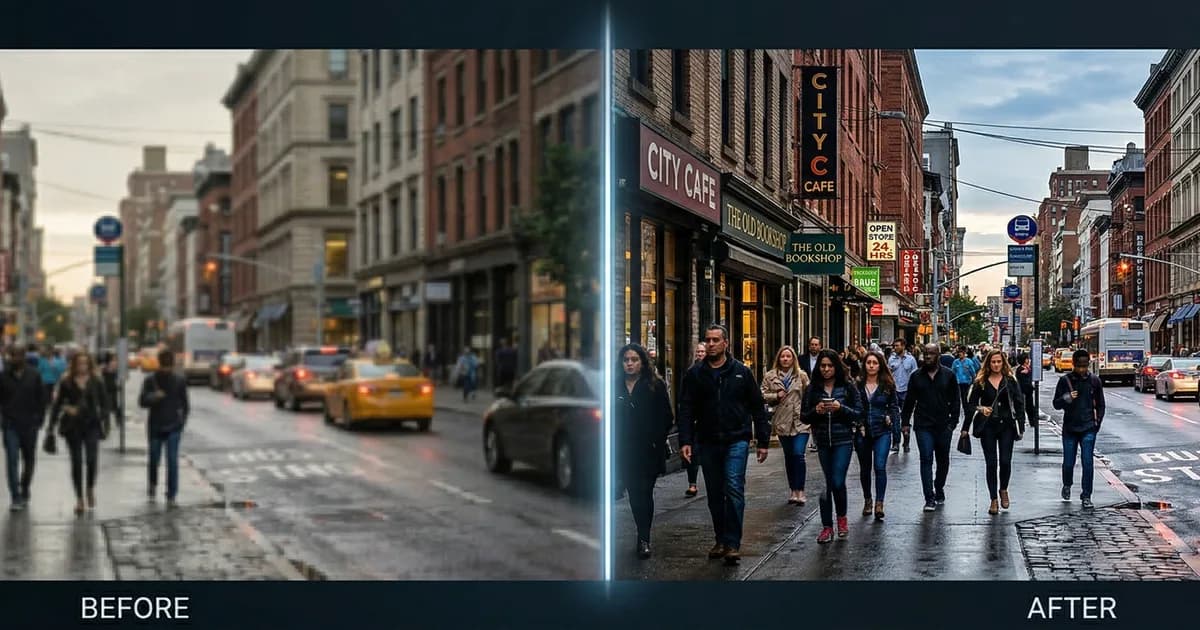
Prices verified March 2026 — please check individual tool websites for the most current rates.
1. What Are You Actually Trying to Fix?
Before diving into tools, it helps to know exactly what problem you're dealing with. "Fix blurry photo" is searched for many different reasons — and different problems require different solutions.
Most tools in this guide handle more than one of these tasks. Each tool listing describes what it performed best at in our hands-on testing — so you can filter for your specific need.
2. How AI Photo Restoration Works
The old way of making images bigger or sharper — called bicubic interpolation — simply stretched pixels and averaged out gaps. If the image was blurry or compressed, you'd get a bigger, blurrier version of the same problem. Modern AI tools work completely differently: they've been trained on millions of image pairs (low quality and high quality versions of the same photo) and predict what the restored version should look like, generating missing detail from scratch.
There are two main AI approaches powering these tools. GANs (Generative Adversarial Networks) are fast, sharp, and excellent for faces and geometric structures. Diffusion Models take more time but produce more organic, photorealistic results. Most tools use one or both behind the scenes — you don't need to know which, just choose the tool designed for your image type.
How We Tested
We selected 9 real-world images spanning the most common photo problems people search to fix: severe motion blur, low resolution, digital noise, vintage film grain, flat illustration, product photography, mixed-texture scenes, and mild focus blur. Each image was processed through all 11 tools using settings that give best results, then manually scored out of 10 across a combined set of technical and usability criteria.
Technical criteria scored: sharpness improvement, artifact creation (halos, ringing, oil-paint textures), AI hallucination rate, plastic/waxy skin, edge fidelity on text and logos, noise handling, semantic understanding (e.g. fur vs. skin), and identity integrity on portraits. Practical criteria scored: ease of use, hardware requirements, processing speed, cost and free-tier availability, and watermark intrusiveness.
3. Live Image Comparisons — All 9 Test Images
Each comparison slider below shows the original image alongside the restored result. Use the tool selector on the left to switch between all 11 tools and see key findings for each one.
4. Overall Rankings & Score Summary
Rankings based on hands-on testing across nine diverse image categories. Each tool was manually scored out of 10 per image, and averages calculated. NeoveAI is listed separately as a professional service category since it uses expert human curation across multiple AI engines.
⚠️ Note on Gemini: Google Gemini performed surprisingly well but is a general-purpose AI assistant, not a dedicated photo tool. We mention it for transparency but do not recommend it for production workflows.
Use the heatmap below to compare scores across all 9 test images. Each row is a tool. Each column is one of our 9 test images. Green = strong (8–10), yellow = moderate (5–7), red = weak (0–4). The rightmost column shows each tool's overall average score. Hover over any cell to see the specific finding for that combination.
5. Professional Service: NeoveAI
The Expert Human+AI Photo Restoration Service
NeoveAI is not a piece of software you download and run. It is a professional photo restoration service staffed by real specialists — people you can actually communicate with. When you submit a job, a restoration expert evaluates your image, understands your specific requirement, and selects the best tools and techniques available for that exact problem.
This matters because no automated tool — no matter how advanced — listens to you. Every piece of software on this list runs its algorithm without any understanding of your requirements. With NeoveAI, you describe the problem: "the faces must look like the original people," "the metallic texture in this product shot needs to be commercially accurate," "this is a 1950s film photo — keep the grain character." The team works to that brief.
And if the result isn't right? Automated tools provide no recourse — what you get is what you get. NeoveAI provides a full revision process. If anything in the restored image doesn't match your requirements, the team works to fix it iteratively until the result meets your standard. No other tool on this list offers that guarantee.
How It Works
Log In
Visit neoveai.com/dashboard to get started.
Place Order or Contact
Order directly or message the team with your image first.
Free Evaluation
We assess your image and offer a free sample if helpful.
Confirm Order
Happy with the approach? Place your order through the dashboard.
Expert Delivery
Specialists work on your image and deliver the result.
Review
Accept the result or request a revision with specific feedback.
100% Satisfied
Revisions continue at no extra cost until you are completely happy.
★ GuaranteeLog In
Visit neoveai.com/dashboard to get started.
Place Order or Contact
Order directly or message the team with your image first.
Free Evaluation
We assess your image and offer a free sample if helpful.
Confirm Order
Happy with the approach? Place your order through the dashboard.
Expert Delivery
Specialists work on your image and deliver the result.
Review
Accept the result or request a revision with specific feedback.
100% Satisfied ★
Revisions continue at no extra cost until you are completely happy.
Key Capabilities
- Sharpening: From softly-focused portraits to landscapes — edges and micro-detail sharpened precisely, without the halo effects common in automated tools.
- Deblurring: Motion blur, camera shake, out-of-focus blur — the right reconstruction approach is selected for the specific blur type in your image.
- Denoising: Digital noise, film grain, high-ISO artifacts — cleaned while preserving the legitimate texture character of the source material.
- Face restoration: Faces are reconstructed accurately — the people in the result look like the people in the original. Identity preservation is a core quality standard.
- Upscaling: From small web-resolution files to large format print output — calibrated for billboards, commercial banners, and wall art.
Why NeoveAI Is Different
Every automated tool on this list applies processing based on what the algorithm interprets from pixels alone — without understanding what you actually need. NeoveAI applies processing based on what you tell a real person. The difference in outcome, particularly on identity-sensitive portraits and commercially critical product photography, is consistently significant.
Furthermore, while AI tools process an image as a single entity, an expert examines it differently: the background needs different treatment from the subject, fur from skin, metallic surfaces from matte surfaces. NeoveAI's workflow addresses different elements of an image individually — which is why results on complex, mixed-content images are consistently better than any automated tool we tested.
Turnaround time is under 12 hours on most projects. A free sample is available so you can evaluate quality before committing to a full order.
Pricing
Project-based pricing starting from $2 per image. A free sample is available before you commit. For high-volume work, weekly and monthly subscription plans are available.
Website: https://neoveai.com/
6. Professional Desktop Software
These tools run locally on your computer, process using your GPU, and give fine-grained control over output. They are the benchmark for professional photographers, archivists, and studios — but require decent hardware and a willingness to learn the model system.
Topaz Photo AI
Topaz Photo AI is the highest-rated automated software in our testing, averaging 7.0/10 across all nine image categories — the most consistent performance of any automated tool on this list. It consolidates sharpening, denoising, face recovery, upscaling, lighting adjustment, and colour balancing into a single Autopilot workflow that analyses your image and recommends appropriate settings.
The tool offers two rendering options: local processing (files never leave your computer) and unlimited cloud rendering. Over two billion images have been processed through Topaz Labs' tools.
Our Verdict
The best single automated software on this list for professional use. It consistently produces excellent results, and its dual local/cloud rendering makes it genuinely flexible.
⚠️ Hardware: Minimum 6GB VRAM and 16GB RAM recommended for smooth local processing. Lower-spec machines should use cloud rendering.
Website: https://www.topazlabs.com/topaz-photo
Prefer to skip the learning curve? A professional editor on Fiverr or Upwork can deliver the same quality without needing to learn the software — see Section 12.
Topaz Gigapixel AI
Topaz Gigapixel AI is the industry benchmark for pure image enlargement. It can upscale up to 32,000 pixels on the long edge — enabling genuinely billboard-quality results from a standard photograph. Nine dedicated AI models are available, including Standard, High Fidelity, Low Res, Text & Shapes, Art & CG, and Face Recovery.
Our Verdict
The industry benchmark for pure enlargement. Unbeatable for billboard, large-format print, and lossless zoom — but limited to upscaling only, not deblurring.
Website: https://www.topazlabs.com/topaz-gigapixel
HitPaw FotorPea
HitPaw FotorPea averaged 6.2/10 in our testing. The Blur Repair model analyses blur type — handling motion blur, camera shake, and misfocused lenses. The Colorize model is one of the strongest in its category.
Our Verdict
Capable on most portrait and landscape types, with genuinely strong colorization. Avoid it for very low-resolution images, CG artwork, and heavily angled low-res faces.
Pricing: ~$38/month or ~$130 perpetual. Website: https://www.hitpaw.com/fotorpea-photo-enhancer.html
Not sure which model to use? A freelance editor already familiar with HitPaw can apply it correctly without the trial-and-error — see Section 12.
AVCLabs Photo Enhancer AI
AVCLabs averaged 5.2/10. Its Ultra AI Model can upscale images up to 400%. A capable batch processing tool for grain removal and mild enhancement. Not suitable as a primary tool for fixing genuine blur.
Our Verdict
Good for grain removal and mild enhancement on clean images. Not suitable as a primary tool for genuine blur reconstruction — its Ultra AI Model upscales but doesn't deblur.
Pricing: ~$19.95/month or ~$39.95/year. Website: https://www.avclabs.com/
For batch grain removal on a tight budget, a freelancer familiar with AVCLabs will get consistent results faster than self-service — see Section 12.
Adobe Photoshop
Photoshop cannot fix blur in the way that Topaz Photo AI or NeoveAI can — it has no equivalent dedicated deblurring model. Its genuine strength is as the manual refinement layer after AI upscaling.
Our Verdict
Essential as a manual refinement layer after AI upscaling, but not a deblurring tool on its own. Best used in combination with Topaz Photo AI or a specialist service.
Pricing: $22.99/month standalone (annual). Photography Plan ($9.99/month) includes Lightroom + Photoshop. Website: https://www.adobe.com/products/photoshop.html
7. Cloud & Browser-Based Tools
These tools run on remote servers — no download required. Upload an image, the cloud processes it, and you download the result.
Let's Enhance
Let's Enhance averaged 5.0/10 overall but scored 9/10 on product photography — one of the strongest cloud tools for e-commerce work. The platform offers three modes: Prime, Gentle, and Old Photo.
Our Verdict
The strongest cloud tool for e-commerce product photography, scoring 9/10 in our product test. Good for batch upscaling of consistent image types.
Pricing: From $9/month (annual). Website: https://letsenhance.io
Cloudinary
Cloudinary's free AI image upscaler averaged 5.1/10. Its real value is what it consistently does not do wrong: subtle sharpening, accurate colours, no plastic skin, no identity alteration. It never made things worse.
Our Verdict
The most reliable "do no harm" tool on this list. Consistently honest results, free, fast, and browser-based.
Website: https://cloudinary.com
Magnific AI
Magnific AI actively reimagines your image rather than simply restoring it. Its Creativity slider controls how much the AI hallucinates new micro-detail.
⚠️ Warning: Do not use Magnific on real product photography where accuracy is required — it can make a product appear different from its actual condition.
Our Verdict
The right tool for AI-generated art and creative upscaling where artistic reimagination is welcome. Wrong tool for real photography requiring accuracy.
Pricing: From $39/month (no free trial). Website: https://magnific.ai
Krea AI
Krea AI gives access to multiple upscaling models — including Topaz Photo AI and Topaz Gigapixel on the Max plan — alongside 64+ AI models for image generation, video creation, and 3D work.
Our Verdict
An excellent all-in-one creative platform. The Max plan's inclusion of Topaz Gigapixel models makes it a strong cloud option for high-resolution upscaling without installing desktop software.
Website: https://www.krea.ai/apps/enhance
Unblurimage.ai
Unblurimage.ai averaged 6.3/10, ranking #3 overall. Using a generative approach, it attempts to reconstruct facial detail and structural information from extremely degraded images.
⚠️ Identity warning: Facial structure is frequently altered. The result may look sharp but not like the original person.
Our Verdict
A last-resort tool. If every other option has failed and the photo is completely unsalvageable, this is your best free option.
Website: https://unblurimage.ai/
PicWish
PicWish averaged 5.2/10. Best for: Quick social media portrait fixes, light cleanup, and background-sensitive e-commerce images. Not for extreme restoration or heavy blur.
Our Verdict
Best for light portrait touchup and background-sensitive e-commerce work. Reliable for moderate enhancement but not suited for heavy blur or complex restoration.
Pricing: Free tier available. $3.33/month (billed annually). Website: https://picwish.com/
AIEnhancer
AIEnhancer (aienhancer.ai) is a free browser-based AI photo enhancement tool trusted by over 1 million users. It averaged 5.2/10 and performed well on moderate blur — scoring 8/10 on the moderate blur selfie.
Our Verdict
A capable free tool for moderate enhancement and AI-art cleanup. For identity-sensitive portraits or commercial photography, use NeoveAI or Topaz Photo AI.
Website: https://aienhancer.ai/
8. Free & Open-Source: Upscayl
Upscayl is the best free upscaling tool available. A fully local, open-source desktop application for Windows, macOS, and Linux. It uses the Real-ESRGAN engine and processes everything on your machine — your images never leave your computer.
In our testing, Upscayl scored a perfect 10/10 on the cartoon illustration — the best single score of any tool across all nine image categories. It was near-perfect on the TMSA Jets logo (9/10). Its hard limit: it scored 0 on the severely blurry portrait. Upscayl sharpens and enlarges what exists. It cannot reconstruct what was never there.
For logos, illustrations, computer-generated images, and already-sharp photographs, Upscayl competes directly with paid tools. Do not use it to fix blur.
Max upscale: Up to 16x | Privacy: 100% local on desktop — no data uploaded. Website: https://upscayl.org/
9. A Note on Google Gemini
In our testing, Google Gemini scored an average of 6.4/10 and ranked #2 by raw score — above dedicated paid tools like HitPaw and AVCLabs. On portrait reconstruction it scored 9/10.
We include this because it is a genuinely interesting finding. However:
- Gemini is a general-purpose AI assistant, not a dedicated image enhancement tool
- No resolution specs, no batch processing, no dedicated model selection
- Results are highly prompt-dependent — what worked in our test may not work for you
- Scored 2/10 on product photography and 1/10 on cartoon illustration — not reliable across all types
- May be updated at any time in ways that change its image processing behaviour
Our recommendation: Worth experimenting with for portrait enhancement. Do not build a production workflow around it.
10. Master Comparison Table — All 11 Tools at a Glance
Every tool covered in this guide, with pricing, max upscale capability, and what each is best for.
11. Which Tool Is Right for You?
Different image problems call for different tools. Select your situation below to see which tools we recommend for your specific case.
Best Choice
Second Choice
Third Choice
Hire a Specialist
See Section 12 for freelancer platform options — platforms, pricing, and what to expect.
12. Hiring a Freelancer to Fix Blurry Photos — Platform Guide & Pricing (2026)
AI tools handle many cases well — but some images genuinely need a human editor: severely blurry portraits where identity matters, complex scenes where automated tools produce artifacts, or commercial work where "close enough" is not acceptable.
Important note: most professional photo editors now use AI tools like Topaz Photo AI as part of their workflow, with manual Photoshop refinement on top. When hiring a freelancer, you are primarily paying for their judgment in selecting the right approach and correcting what AI gets wrong.
Fiverr — Best for Quick, Affordable One-Off Fixes
Best for: Quick one-off fixes, entry-level price points, fast turnaround.
Pricing
- Entry level: $5–$10/image
- Mid-range: $15–$30 (multiple images, faster delivery)
- Premium/Pro: $50–$100+
Platform Fees
- Seller fee: 20% flat
- Buyer fee: 5.5% + ~$3 surcharge on orders under $50
Turnaround
1–3 days on most gigs
Pros
- ✓ Largest pool of photo editors
- ✓ Clear gig pricing upfront
- ✓ Easy portfolio review before hiring
- ✓ Fast turnaround for simple jobs
Cons
- ✕ Quality varies widely — vet sellers carefully
- ✕ High buyer fee adds to cost
- ✕ No long-term project tools
Upwork — Best for Complex Projects and Vetted Professionals
Best for: Complex or ongoing projects, verified professionals, longer escrow window.
Pricing
- Hourly: $12–$75/hour
- Fixed-price catalog: $10–$150/project
Platform Fees
- Seller fee: 0–15%
- Buyer fee: 3–5% + contract initiation fee
Turnaround
1–7 days typical. 14-day auto-release escrow.
Pros
- ✓ Identity verified freelancers
- ✓ Job Success Score and badges
- ✓ Good for complex multi-image projects
- ✓ Longer escrow window to evaluate
Cons
- ✕ Higher buyer fees than Guru
- ✕ More setup time than Fiverr
- ✕ Contract initiation adds cost
Freelancer.com — Largest Pool, Most Variable Quality
Best for: Budget projects, bulk work, contest-style briefs.
Pricing
- Fixed-price: $10–$33/project typical
- Contest model: receive multiple entries before paying
Platform Fees
- Seller fee: 10%
- Buyer fee: 3%
Turnaround
1–5 days. Milestone-based escrow.
Pros
- ✓ Largest registered user base
- ✓ Contest model lets you see results first
- ✓ Low buyer fee (3%)
Cons
- ✕ Most variable quality of any platform
- ✕ Requires careful vetting
- ✕ Interface less polished than Fiverr/Upwork
Guru.com — Lowest Platform Fees
Best for: Cost-conscious buyers, repeat work, SafePay escrow.
Pricing
- Fixed-price: $5–$25/project typical
- Dedicated "Photo & Image Enhancement" category
Platform Fees
- Seller fee: 5–9%
- Buyer fee: 2.9% (waivable)
Turnaround
1–3 days. SafePay escrow.
Pros
- ✓ Lowest buyer fee of any major platform
- ✓ Buyer fee can be waived
- ✓ Dedicated photo editing category
Cons
- ✕ Smaller talent pool than Fiverr/Upwork
- ✕ Less name recognition
PeoplePerHour — Structured Quality with Mandatory Revisions
Best for: Revision-protected jobs, structured deliverables.
Pricing
- Hourlies: $10–$15/image set
- Mandatory 2 revisions before dispute escalation
Platform Fees
- Seller fee: 20% → 3.5% (tiered by earnings)
- Buyer fee: 3.5%
Turnaround
1–3 days. 7-day auto-release escrow.
Pros
- ✓ Mandatory revisions protect buyers
- ✓ Structured deliverable format
- ✓ Low buyer fee (3.5%)
Cons
- ✕ Smaller platform than Fiverr/Upwork
- ✕ High initial seller fee (20%) may affect pricing
Platform Comparison at a Glance
| Platform | Best For | Entry Price | Seller Fee | Buyer Fee | Turnaround | Escrow |
|---|---|---|---|---|---|---|
| Fiverr | Quick one-off fixes | $5–$10/image | 20% | 5.5% + surcharge | 1–3 days | 3-day auto-release |
| Upwork | Complex or ongoing work | $10–$25/project | 0–15% | 3–5% + initiation | 1–7 days | 14-day auto-release |
| Freelancer.com | Budget and bulk | $10–$33/project | 10% | 3% | 1–5 days | Milestone-based |
| Guru | Cost-conscious buyers | $5–$25/project | 5–9% | 2.9% (waivable) | 1–3 days | SafePay escrow |
| PeoplePerHour | Revision-protected jobs | $10–$15/set | 20% → 3.5% | 3.5% | 1–3 days | 7-day auto-release |
Fee structures as of March 2026. Verify current rates before posting a project.
How to Choose the Right Platform
For a single blurry photo quickly: Fiverr — sort by reviews, $10–$30 range, 1–3 day turnaround.
For high-stakes complex work: Upwork — Job Success Score, Top Rated, Expert-Vetted badges. 14-day escrow gives more time to evaluate results.
For lowest total cost: Guru's 2.9% buyer fee (waivable) means more of your budget goes to the actual editor.
⚠️ One honest caveat: for severely blurry or very low-resolution images, even professional human editors rely heavily on AI tools like Topaz Photo AI. Self-service AI tools may deliver comparable results without the wait or per-image cost. The human advantage becomes significant when images need creative judgment — or when AI tools produce poor results.
13. Advanced Tips for Better Results
Match Your Tool to Your Image Type
Almost every tool on this list has different modes or models — and using the wrong one produces bad results. A digital art model applied to a real photo makes skin look painted. A portrait model applied to a logo blurs the edges. Before processing, check which mode your tool recommends for your image type. The default setting is rarely the best one.
Avoid Over-Denoising
When denoising is set too high, it removes the natural texture of a photo along with the noise — leaving skin, fabric, and surfaces looking waxy or plastic. If results look unnatural, reduce the denoising strength. A small amount of natural grain is a feature, not a flaw.
Lock Your Settings for Batch Work
If you are processing multiple images at once, fix your settings before running the batch. AI tools react differently to each image, and without locked presets, a batch of 50 photos can come out with inconsistent sharpness, colour, and contrast. Always spot-check a few images from a batch before accepting the full output.
Scan Physical Prints Before Upscaling
If you are starting from a physical print rather than a digital file, scan it at 300–600 DPI on a flatbed scanner and save as TIFF, not JPEG. JPEG compression discards fine detail that AI tools rely on to do their job. The better the input, the better the output.
When to Skip AI Entirely
If the image is of a real person whose identity matters, a product that will appear in paid advertising, or any image where the result will be scrutinised closely — review the AI output carefully before using it. AI tools can change how a face looks, introduce shimmer on metallic surfaces, or add texture that was not in the original. For accuracy-critical work, human review of the output is not optional.
14. Conclusion
When accuracy genuinely matters — a real person, a real product, a document that will be seen professionally — the most reliable approach remains human expertise combined with AI speed. NeoveAI provides a real specialist assigned to your image, who selects the right tools, applies the right techniques, and keeps working until you are satisfied. Starting from $2 per image with a free sample, no automated tool on this list can offer that combination of accuracy, accountability, and revision guarantee.
That said, the data from our testing tells a clear story: no single automated tool wins at everything, and the right free or paid tool often gets you 80–90% of the way there.
- NeoveAI — for accuracy-critical work where the result must be right. Expert selection of the right tools, human review, and a revision guarantee no automated product can match. Starting from $2/image with a free sample.
- Topaz Photo AI is the most consistent automated software — the best single purchase for professional photographers and studios.
- Upscayl is unbeatable for logos, illustrations, and clean upscaling — completely free.
- Let's Enhance is the strongest cloud tool for e-commerce product photography.
- Cloudinary is the safest free option for honest, quick web enhancements.
- Magnific AI is the right tool for AI artists — but wrong for real photography.
- Unblurimage.ai is the best free rescue tool for images other tools cannot fix — but too aggressive for decent originals.
- AIEnhancer is a capable free option for moderate enhancement and AI art cleanup.
The right tool depends entirely on your image type, your budget, and how much the result matters. Use the decision guide in Section 11 to find your match.
15. Frequently Asked Questions
What is the best AI tool to fix a blurry photo in 2026?
For accuracy-critical work — portraits, commercial photography, archival images — NeoveAI is the most reliable option. It combines AI with human expert review, maintains identity accuracy, and offers revisions. For automated tools, Topaz Photo AI is the most consistently strong performer. For a free option on severely blurry images, Unblurimage.ai is the best last-resort choice.
Can AI actually fix motion blur?
Yes, with caveats. NeoveAI and Topaz Photo AI can reconstruct detail from motion-blurred images by predicting what the sharp version should look like. Quality depends heavily on blur severity and how much original detail is present. Note that Unblurimage.ai performs poorly specifically on directional motion blur — its reconstruction works better on camera shake and focus blur.
Is Topaz Photo AI worth the price?
For professional photographers and photo studios, yes. At $17/month (annual plan), it is the most consistent high-quality automated tool available. It integrates directly into Lightroom and Photoshop and performs well across all major image types. For casual occasional use, free tools like Cloudinary or Upscayl may be sufficient.
What is the best free tool to fix blurry photos?
For logos and illustrations: Upscayl (desktop, 100% free, up to 16x upscaling). For severely blurry photos: Unblurimage.ai (web, free, no registration, up to 16K). For safe light enhancement: Cloudinary (web, free). For AI art and moderate photo enhancement: AIEnhancer (web, free, up to 4K).
What is the difference between upscaling and deblurring?
Upscaling increases the number of pixels — making the image physically larger. Deblurring reconstructs sharpness and detail lost due to camera shake, motion, or lens focus error. They are different problems requiring different tools. Topaz Photo AI does both well. Upscayl only upscales — it cannot fix blur.
Will AI photo restoration change how people look in my photos?
It can, and this is one of the most important risks with automated tools. Many AI upscalers generate new facial features rather than faithfully reconstructing the original. Unblurimage.ai in particular frequently alters facial structure. NeoveAI specifically prioritises identity preservation — facial reconstruction is validated against the source to ensure the person looks like themselves.
How long does NeoveAI take?
Turnaround is under 12 hours on most projects. You communicate directly with a specialist who confirms the scope before starting. A free sample is available so you can evaluate quality before committing.
Can I upscale an image for large format print like a billboard?
Yes. NeoveAI handles large format print as a specific service offering, calibrating output for viewing distance and print medium. Topaz Gigapixel AI can upscale up to 32,000 pixels on the long edge — sufficient for billboard-scale output. Krea AI's Max plan includes access to Topaz Gigapixel models in the cloud.
Is Upscayl as good as paid tools?
For the right use case, yes. It scored 10/10 on cartoon illustration in our testing — matching or beating every paid tool. On logos and already-sharp photos it is genuinely competitive. Its hard limit: it cannot reconstruct blur or detail that was never present. For upscaling clean source material, it is an exceptional free option.
What is the best tool for restoring old family photos?
For photos with significant damage — tears, scratches, fading, heavy blur — NeoveAI is the safest choice because it preserves identity and offers revisions. Automated alternatives: HitPaw FotorPea (strong colorization for black-and-white restoration), Topaz Photo AI (best automated all-round restoration), Unblurimage.ai (best free option for severely degraded images). Avoid tools that prioritise creativity over accuracy such as Magnific AI.
Is it better to use an AI tool myself or hire a freelancer?
For simple upscaling or light enhancement, self-service AI tools like Topaz Photo AI or Upscayl are often sufficient and faster. For images where identity accuracy matters, where automated tools have already produced poor results, or where the output will be used commercially, hiring a professional editor is the safer choice. Most professional editors now use the same AI tools as part of their workflow, combined with manual refinement on top.
How much does it cost to fix a blurry photo professionally?
If using self-service AI tools, costs range from free (Upscayl, Unblurimage.ai, Cloudinary) up to $17–$39/month for professional-grade desktop software. If hiring a freelancer on Fiverr, entry-level gigs start at $5–$10 per image, with professional work at $30–$100+. For a managed professional service, costs typically start from $2 per image with volume pricing available.
What file format should I save my photo in before trying to fix blur?
Always use the highest quality version you have. If you only have a JPEG, use it as-is — do not re-save as JPEG as this adds compression artefacts. If you have a RAW file, export it as TIFF before processing. TIFF preserves all the fine detail that AI tools need to reconstruct blur. PNG is also acceptable for graphics and illustrations.
Does fixing a blurry photo reduce its quality?
If done correctly, no — it should improve quality. However, aggressive processing can introduce new artefacts such as halos, plastic-looking skin, or hallucinated details. This is why choosing the right tool for your image type matters, and why reviewing the output carefully before using it is essential.
Can I fix a blurry screenshot or screen recording?
Yes, though results vary. Screenshots respond well to upscaling because the content is typically text and flat graphics — Upscayl excels here. Screen recordings and video frames are more complex — for video enhancement, tools with dedicated video upscaling such as Krea AI are better choices.
How do I know if my photo is too blurry to fix?
No photo is definitively too blurry to attempt, but expectations matter. If the photo has severe motion blur and no recognisable facial features, even the best tools may produce a sharp result that does not look like the original person. The best way to know is to run it through a free tool like Unblurimage.ai first. If unusable, a professional service that offers a free sample evaluation — where a specialist honestly tells you what is recoverable — is the next step.
What is the difference between sharpening and deblurring?
Sharpening increases edge contrast and perceived crispness on an image that was never blurry. Deblurring attempts to reconstruct detail lost due to camera movement, out-of-focus capture, or motion during exposure. Sharpening a blurry photo will not fix it — it will make a blurry photo look like a sharper blurry photo. You need a dedicated deblurring tool for genuine blur reconstruction.